Save and restore workflows
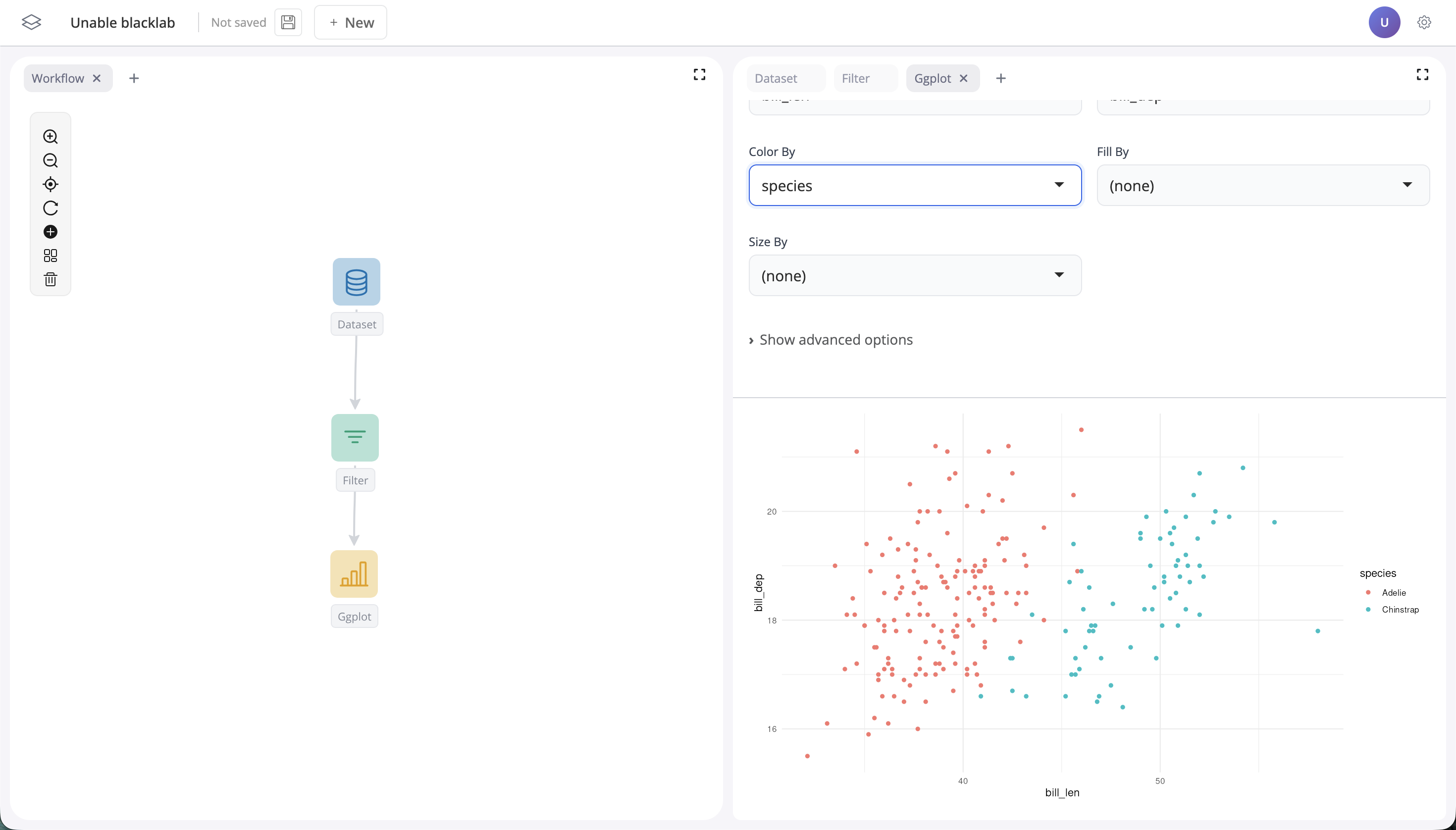
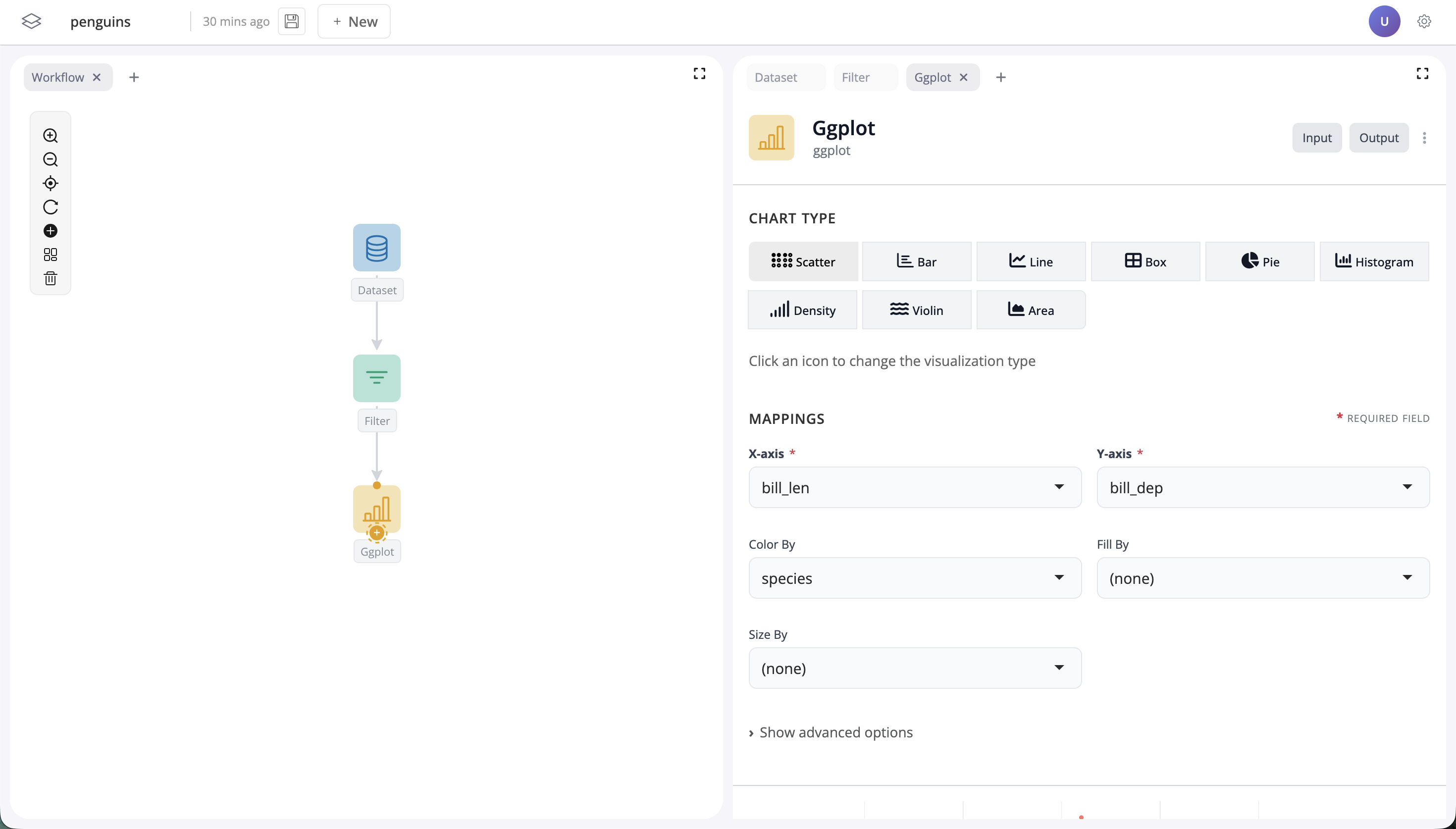
Learn how to save and restore workflows in blockr. Let’s start with a simple workflow where we visualise some penguins data using three blocks:
Steps
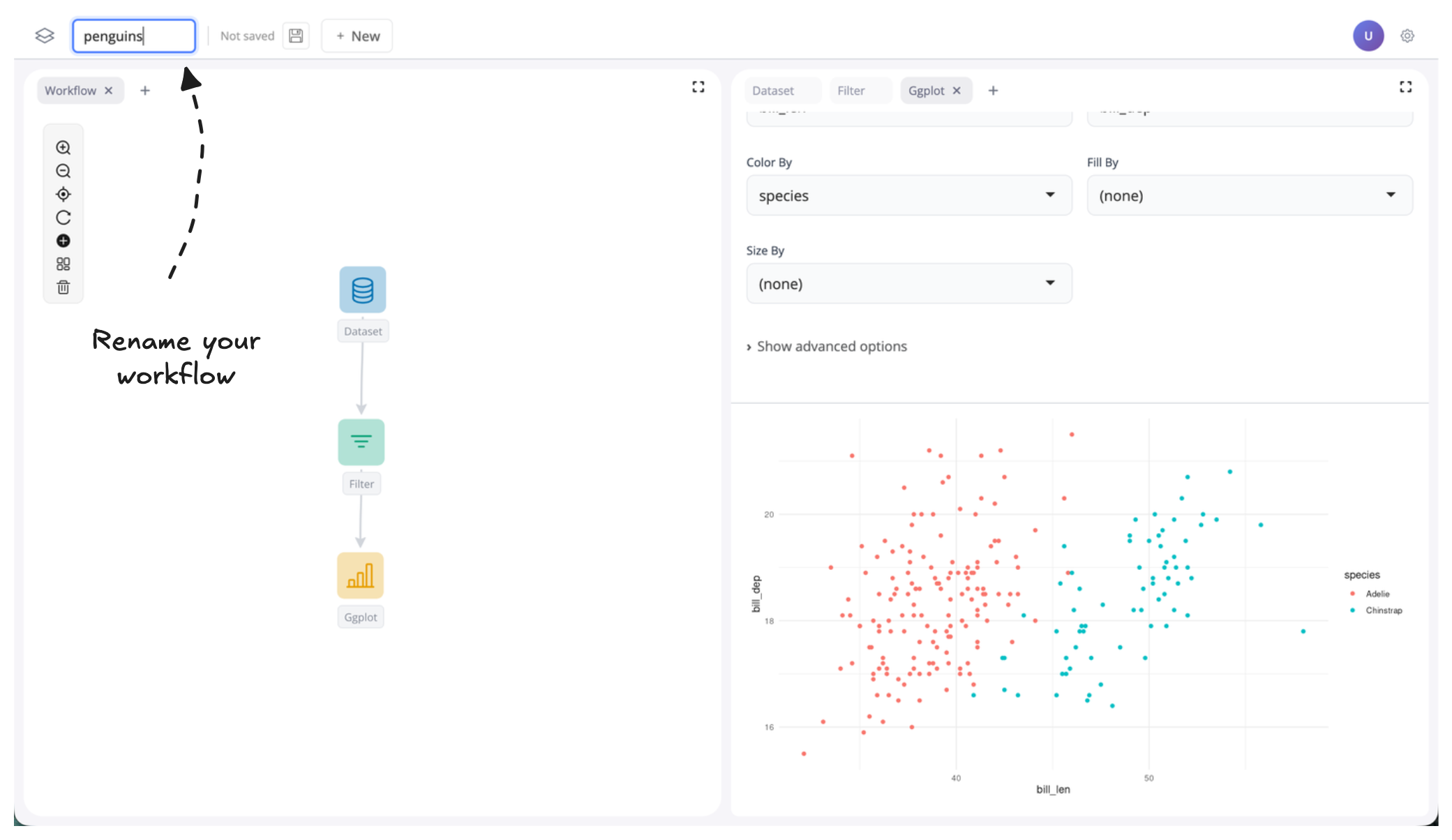
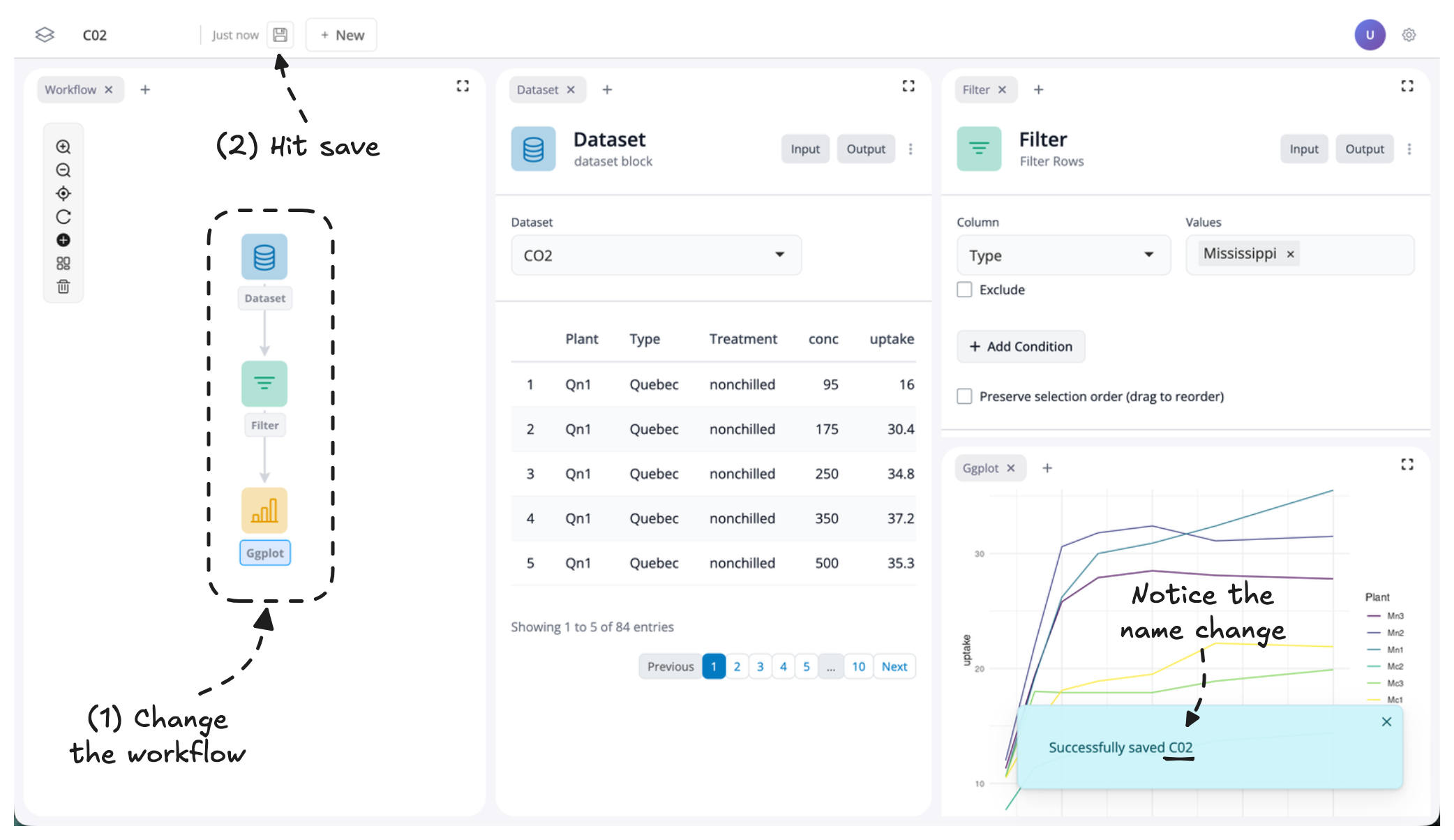
- You can rename your workflow by editing the top-left corner text box. Alternatively, you can stick with the randomly generated default name.
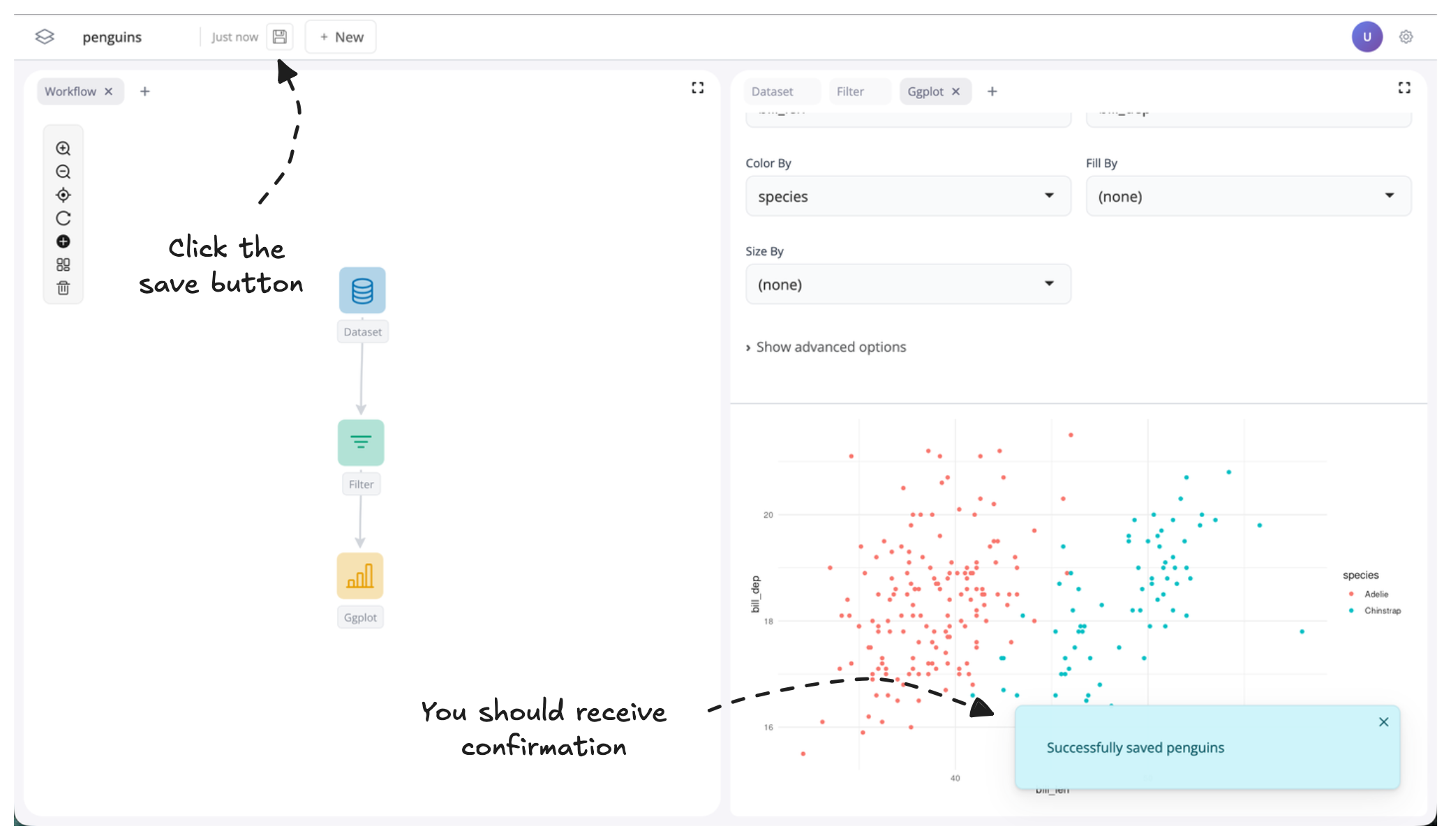
- Hit the save button to save the current state of your workflow.
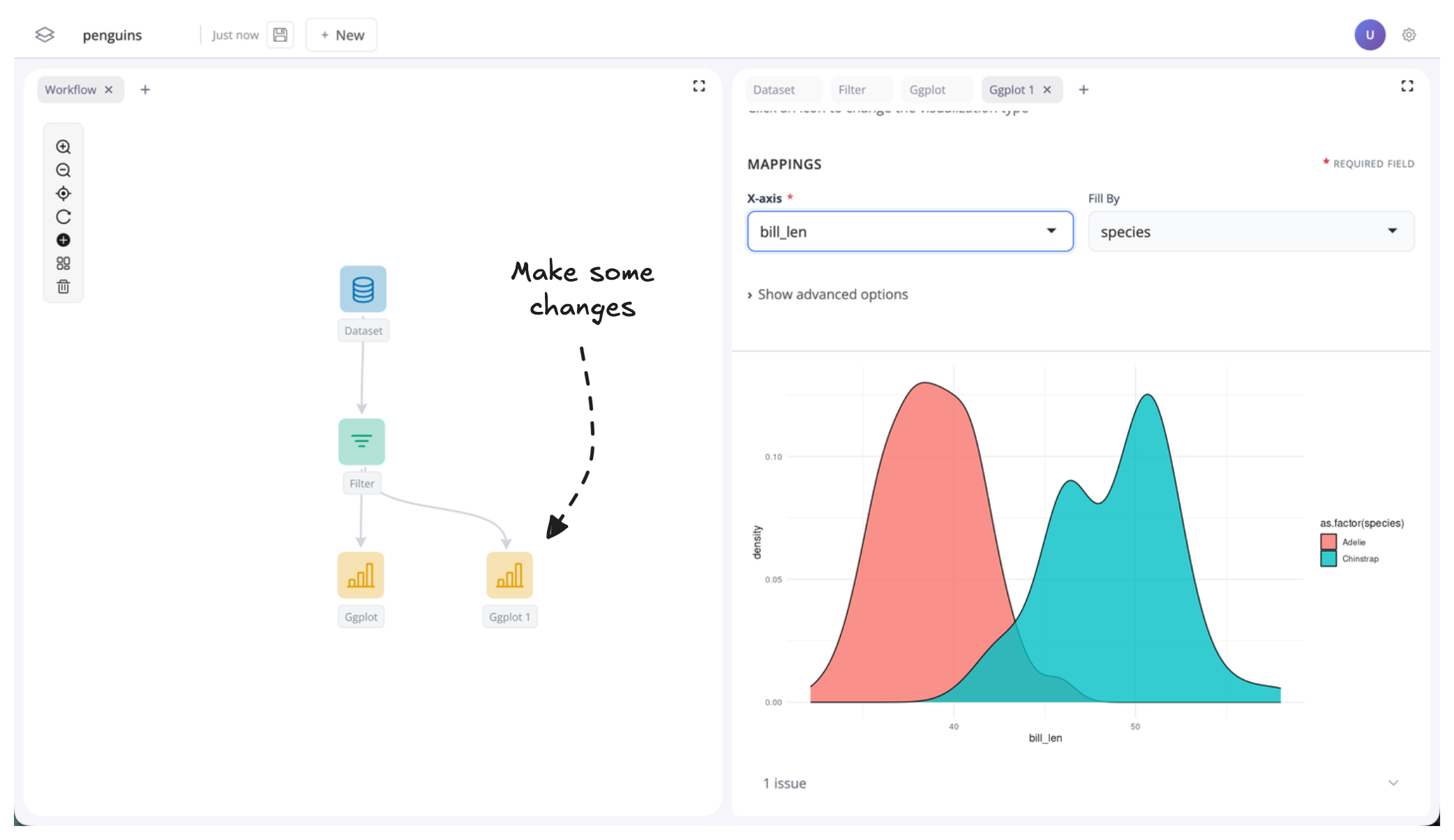
- Next, let’s make some changes to your workflow. Here, let’s add a second plot:
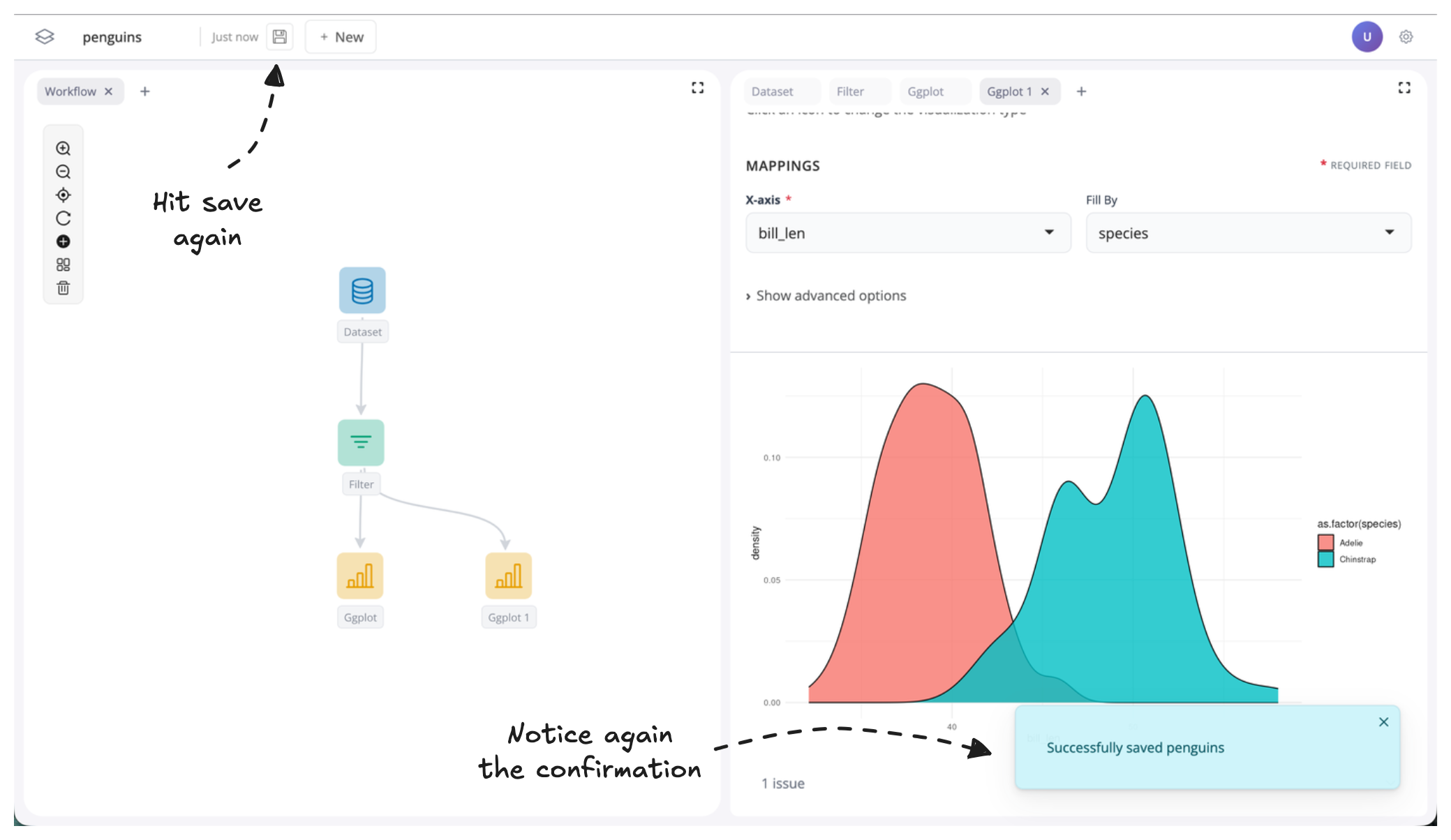
- Then, hit save again to save the new state of your workflow.
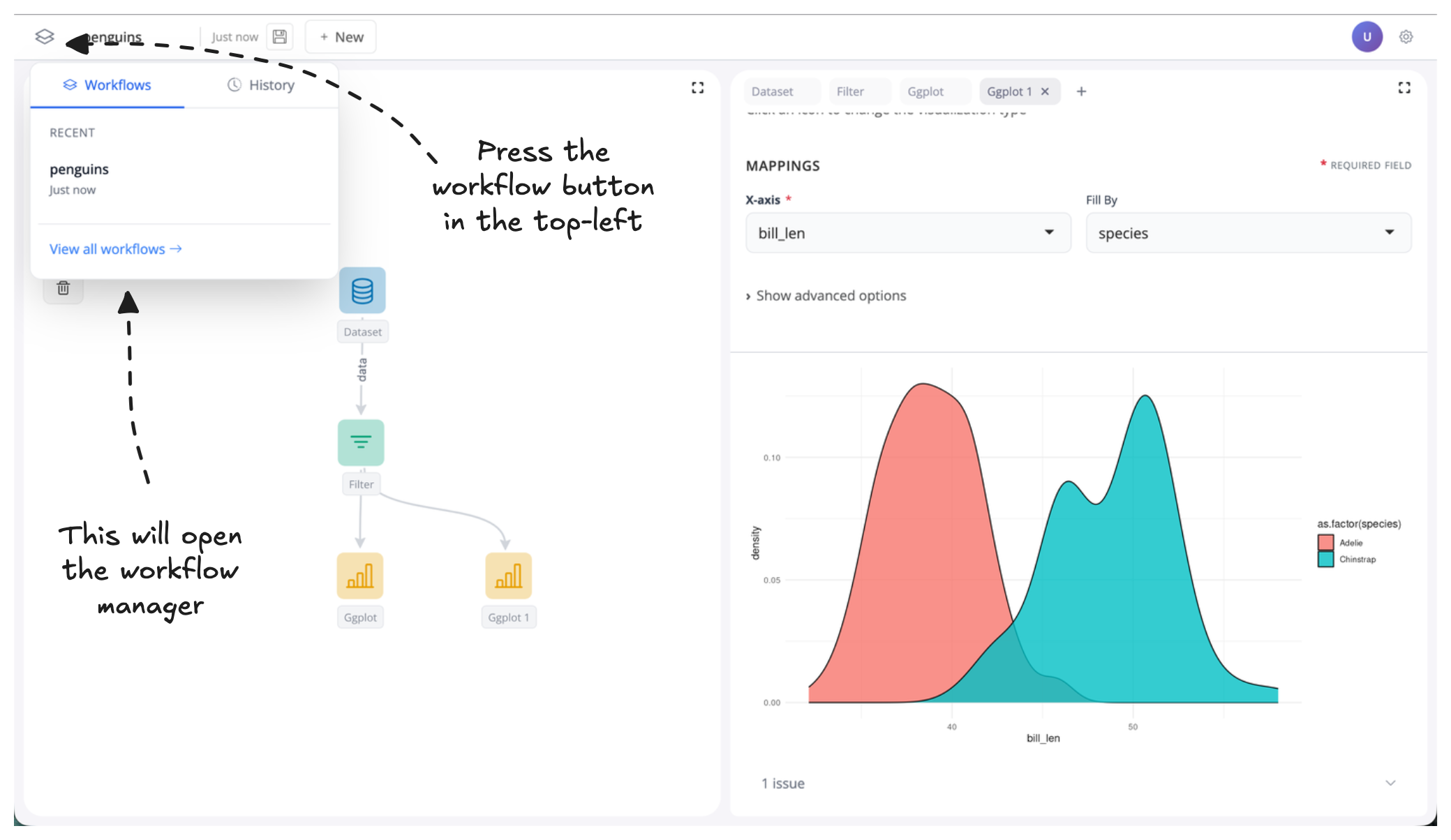
- Now, to restore a previous version of our workflow the first thing we need to do is open the workflow manager. To do this, press the workflow button in the top-left corner:
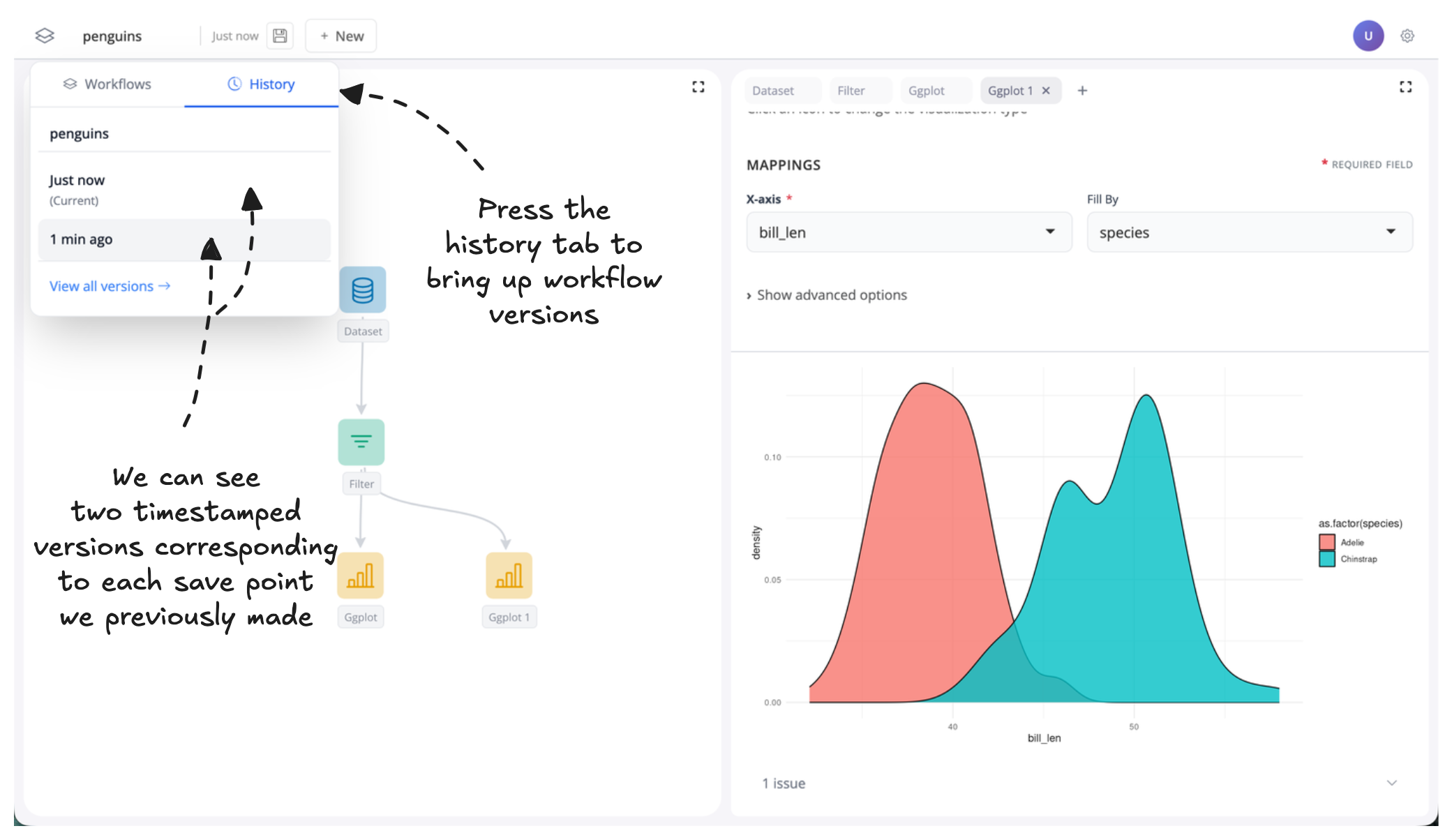
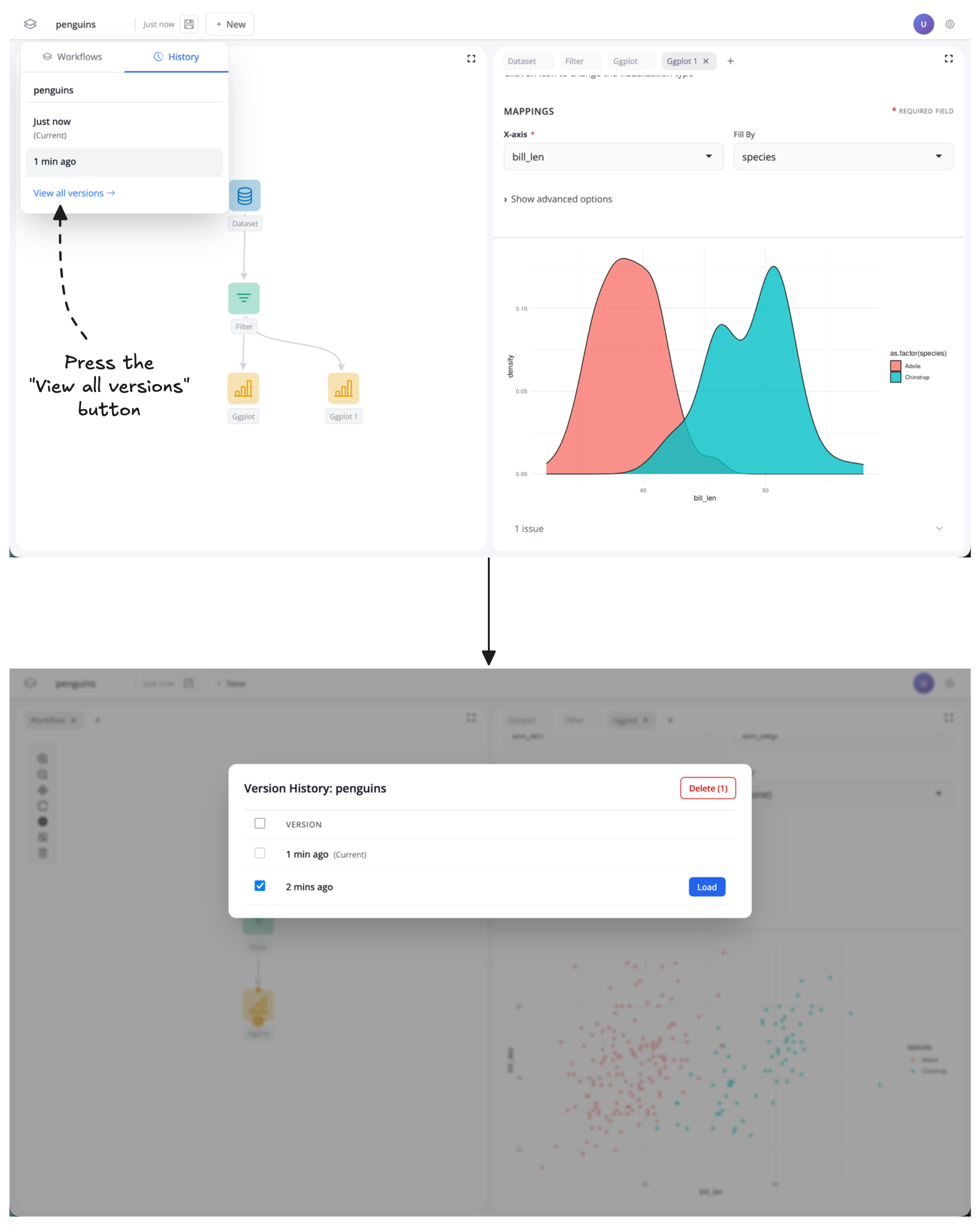
- From here, press the history tab to open a list of all saved versions of our penguins dashboard. Each save point is an item in the list, with a timestamp of when it was saved.
- Let’s press the first time stamp (here labelled 1 min ago) to restore out previous version of the workflow:
- Alternatively, press the “View all versions” button to bring up the version history manager which provides you even more control of version restoration and deletion:
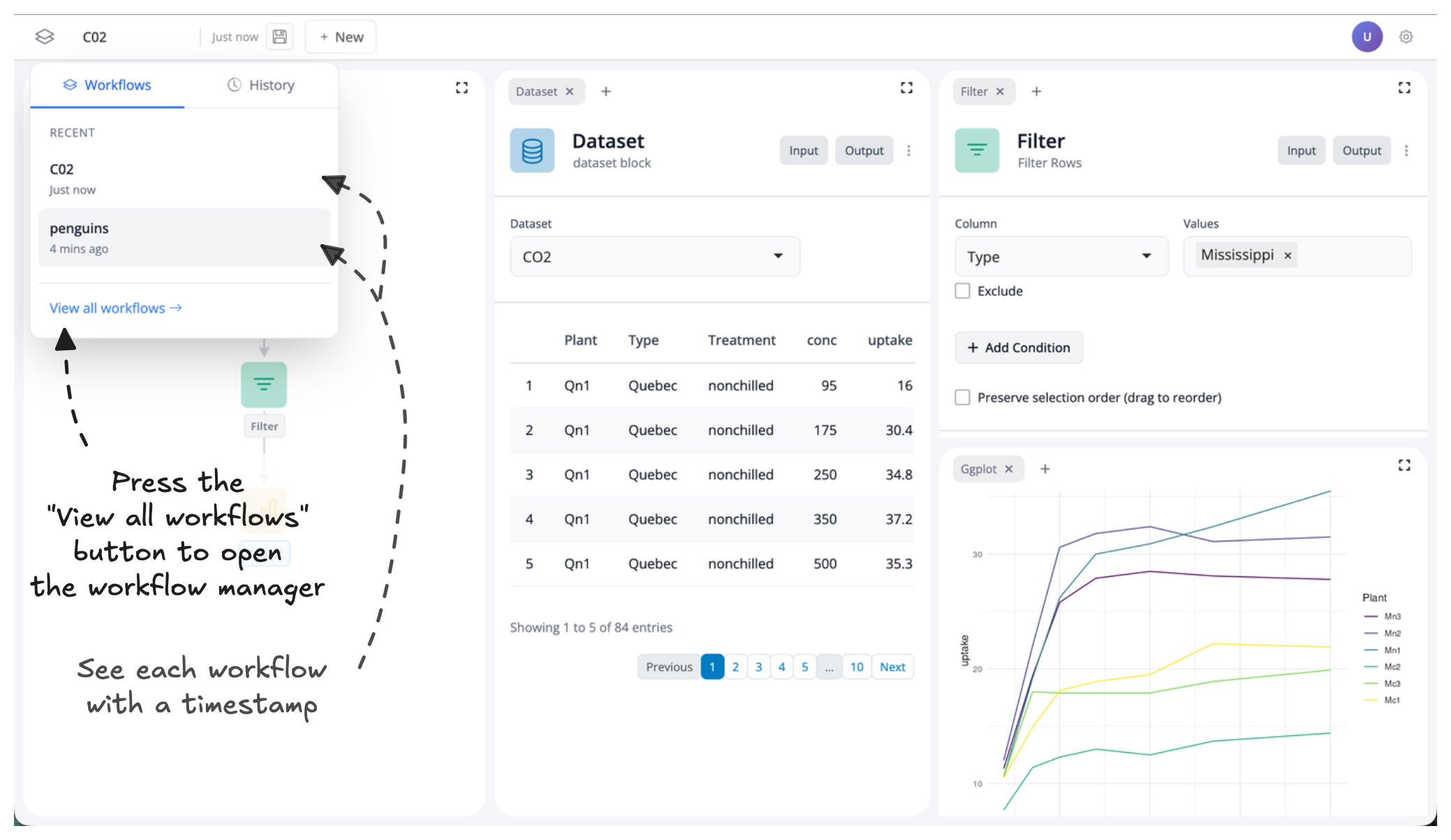
- Finally, let’s change our workflow completely by using the C02 dataset instead of penguins and save this new workflow:
- Now we can save and restore different workflows using the workflow tab in the workflow manager. Like before, these are presented in a timestamped list, and the “View all workflows” button can be pressed to bring up finer-grained controls: